Copy the video link
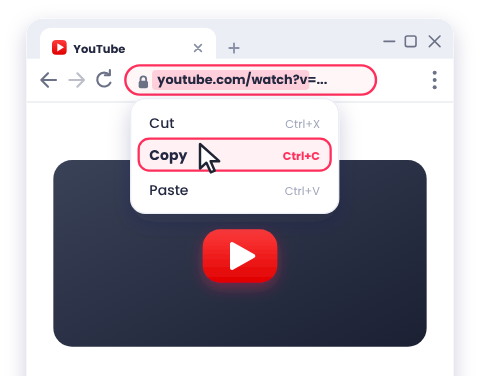
On YouTube, click the browser's address bar and press Ctrl+C. You can also right-click the video player and select Copy video URL.
Download YouTube videos on a Windows PC or laptop. Paste the link into DownMP4 in Chrome, Edge or Firefox, pick a quality, and save the MP4 to Downloads.
On YouTube, click the browser's address bar and press Ctrl+C. You can also right-click the video player and select Copy video URL.
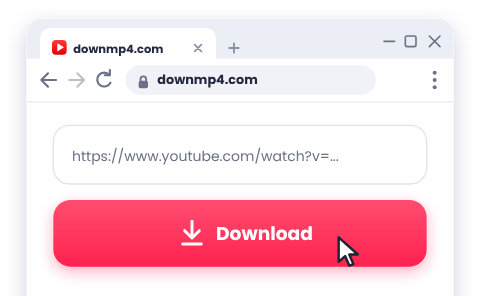
Click the input box at the top of this page, press Ctrl+V to paste, and click Download.
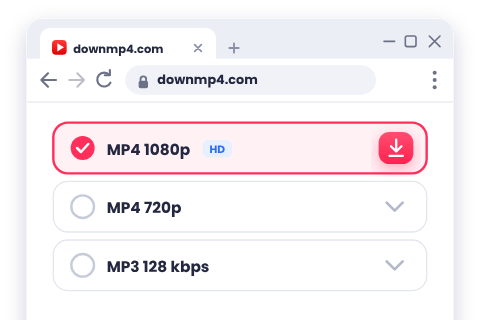
For most laptops and desktop monitors, 1080p is the best choice. Click the quality you want. Depending on your browser settings, the file will either save automatically or ask where to save it.
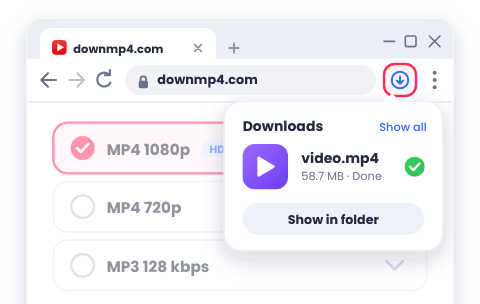
Click the completed file in your browser's downloads menu to play it. You can also press Ctrl+J in Chrome or Edge, or open File Explorer and go to the Downloads folder.
By default, your browser saves files to the Downloads folder inside your Windows user profile (C:\Users\YourName\Downloads). To change your save location:
Most MP4 files play natively in Windows Media Player or Movies & TV. If a video shows a black screen or plays without audio—most common with 4K and 8K files—open it in VLC, a free player that handles virtually every video codec.
Use 1080p for most laptops and desktop monitors. Choose 720p for smaller file sizes, or pick 1440p and 4K for high-resolution displays and video editing when you have plenty of disk space. To compare every format, check out our quality guide.
Select MP3 or M4A from the quality list. Your audio file saves directly to your Downloads folder and plays in Windows Media Player, VLC, and virtually any music app.
Right-click the quality button, select Save link as, and choose a folder on your PC.
Open your browser's downloads panel (Ctrl+J) to check for any warning prompts. Pause ad blockers or third-party download manager extensions for this page, verify your antivirus isn't blocking the transfer, or try another browser.
Press Ctrl+J in Chrome or Edge (or Ctrl+Shift+Y in Firefox) to view recent downloads and click Show in folder. You can also check File Explorer > Downloads.
Open the file in VLC media player. If it still fails, download the video again in 1080p or 720p—Windows doesn't include built-in codecs for every 4K and 8K video stream.
Some editing software doesn't support modern VP9 or AV1 streams inside high-resolution files. Download the video again in 1080p or 720p (H.264 MP4), or transcode it to standard H.264 using a free tool like HandBrake.
Check your internet connection and disable any VPN. Confirm you have enough free disk space (Settings > System > Storage), then restart the download or choose a lower resolution.
High resolutions like 4K generate very large files. Pause other active downloads or streams, switch to a wired Ethernet or stronger Wi-Fi signal, or pick a lower resolution like 1080p or 720p.
Other issues—such as a missing 1080p option or an unsupported video URL—are covered in Common Problems.
No. DownMP4 works directly in your web browser, so there is nothing to install.
Chrome, Edge, and Firefox all work seamlessly, along with other modern desktop browsers like Brave and Opera.
In your Windows Downloads folder, unless you've changed the default download path in your browser settings.
Yes. DownMP4 runs in any modern desktop web browser, so the exact same steps apply on Linux and ChromeOS.
Yes. Select MP3 or M4A from the quality list after pasting the video link.
Yes. Once the MP4 file is saved on your PC, you can play it anytime without an internet connection.
Only download videos you own or have permission to save. See Download Responsibly.