Copy the video link
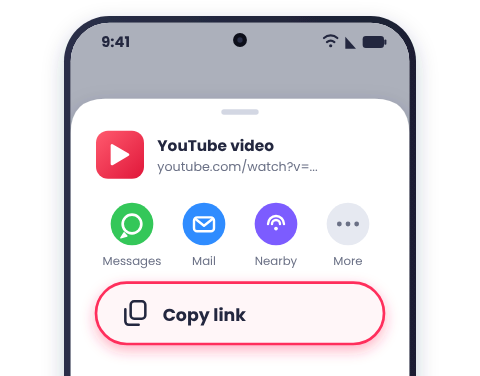
In the YouTube app, tap Share, then Copy link. In a browser, copy the address from the address bar.
Download YouTube videos on Android without an app. Copy the link, paste it into DownMP4 in Chrome, save the MP4, and find it in Files or your Gallery.
In the YouTube app, tap Share, then Copy link. In a browser, copy the address from the address bar.
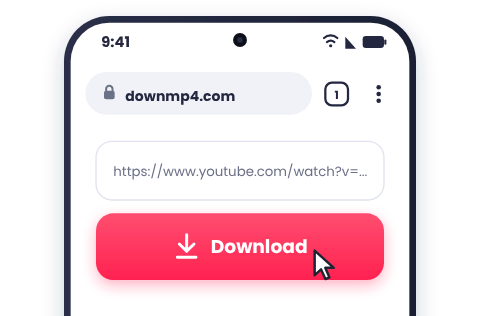
Open this page in Chrome. Tap the box at the top of the page, tap again (or press and hold), choose Paste, then tap Download.
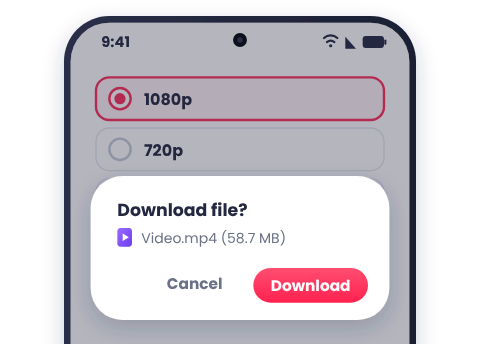
For most Android screens, 720p or 1080p is the best pick. Tap the quality you want, then tap Download if your browser asks. Pull down the notification panel to watch the progress.
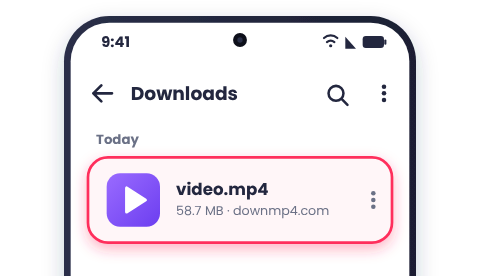
When the download finishes, tap the notification to play the video. You can also find it anytime in the Files app under the Downloads folder.
Your browser saves downloads in the Downloads folder on your phone. Open Files by Google (or My Files on Samsung), or check Chrome's Downloads menu.
Most gallery apps list the video in a Download album within a few moments. If you don't see it:
Google Photos only shows device folders and backed-up items, so look for your Download folder under your on-device folders, or use your phone's built-in Gallery app.
720p is plenty for phone screens and saves storage and mobile data. Choose 1080p for tablets and bigger screens. Older or budget phones can struggle with 4K and 8K files, so use those only on newer devices. To compare every option, see the quality guide.
Choose MP3 or M4A in the quality list. The audio file is saved in your Downloads folder. Most music apps pick it up automatically. If yours doesn't, move the file to the Music folder.
Tap and hold the quality button, then choose Download link.
Check that you have free storage, and allow storage access if Chrome asks. If the problem continues, open Chrome's three-dot menu, go to Settings > Site settings > Automatic downloads, make sure downloads are allowed, then try again.
Open Files and check Downloads (or Internal storage > Download). In Chrome, tap the three-dot menu and choose Downloads to see recent files. On Samsung phones, open My Files.
Open it from the Files app first. Then move it to the Movies folder and reopen your gallery. Google Photos only shows device folders and backed-up items, so use the built-in Gallery app or check your on-device folders.
Try a video player such as VLC or MX Player. If it still fails, download the video again in 1080p or 720p. Very large 4K or 8K files can be too heavy for older or budget phones.
Check your Wi-Fi or mobile data, and turn off VPN, Data Saver, or Battery Saver while downloading. Open the Downloads list in Chrome and tap Resume if it appears. You can also try a lower quality.
Links opened inside Instagram, Facebook, Telegram, or Gmail use an in-app browser. Tap the menu and choose Open in Chrome (or Open in browser), then try again.
Other problems, such as a missing 1080p option or a link that is not accepted, are covered in Common Problems.
Yes. DownMP4 works directly in your mobile browser, so nothing needs to be installed.
Yes. Because it runs in the browser, it works on every Android phone brand. Chrome is recommended.
Yes. The steps are exactly the same on an Android tablet.
In the Downloads folder. Open the Files app and tap Downloads.
Yes. Once the file is saved on your device, it plays anytime without an internet connection.
Only download videos you own or have permission to save. See Download Responsibly.