Copy the video link
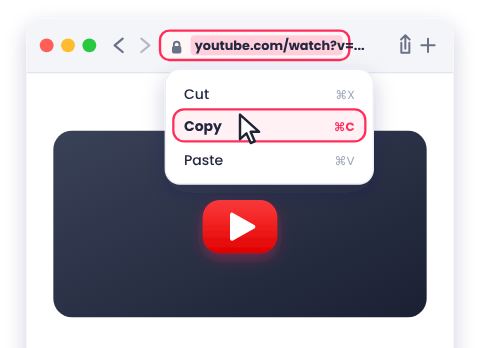
On YouTube, click the browser's address bar and press Command+C. You can also Control-click (or right-click) the video player and select Copy video URL.
Download YouTube videos on Mac with Safari or Chrome. Paste the link into DownMP4, pick a quality, save the MP4, and find it in your Downloads folder.
On YouTube, click the browser's address bar and press Command+C. You can also Control-click (or right-click) the video player and select Copy video URL.
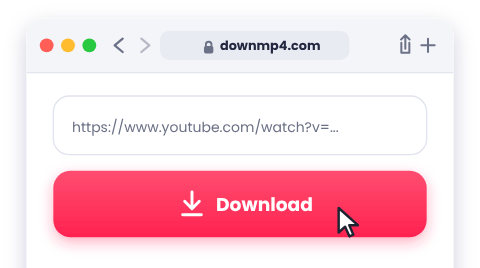
Click the input box at the top of this page, press Command+V to paste, and click Download.
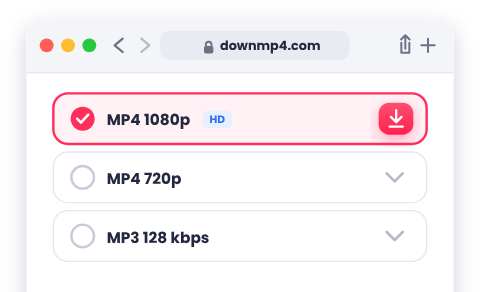
For most Macs, 1080p is the best choice. Click the quality you want. If Safari asks for permission to allow downloads from this website, click Allow.
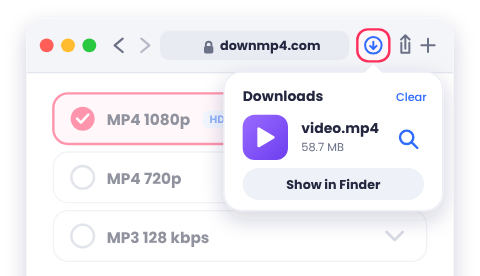
Click the Downloads icon in your browser's toolbar and double-click the video to play it, or open Finder and look in your Downloads folder.
By default, your browser saves files to the Downloads folder. Open Finder and select Downloads in the sidebar, or click the Downloads stack on the Dock. In Safari, press Option+Command+L to view the downloads list. To change your default save folder:
Most MP4 videos play smoothly in QuickTime Player, which comes built into macOS. If a video shows a black screen or plays without audio—most common with 4K and 8K files—open it in VLC, a free media player that supports virtually every codec.
Choose 1080p for most Macs—it looks sharp on Retina displays while keeping file sizes reasonable. Pick 4K only for large external monitors or video editing when you have plenty of storage, as 4K files are large and may require VLC instead of QuickTime. To compare all formats, see our quality guide.
Select M4A (Apple's native audio format) or MP3 from the quality list. Both formats play effortlessly in QuickTime Player and the Apple Music app. Avoid WebM audio on macOS, as QuickTime doesn't support it natively.
Click Allow when Safari prompts you. If you previously clicked Don't Allow, open Safari > Settings (or Preferences) > Websites > Downloads and set this website to Allow.
Control-click (or right-click) the quality button and choose Download Linked File (in Safari) or Save Link As (in Chrome/Firefox).
Open Finder > Downloads, or click the Downloads stack on the Dock. In Safari, press Option+Command+L to see your recent downloads.
Open the file in VLC media player. If it still doesn't work, download the video again in 1080p or 720p—some 4K and 8K streams use codecs that QuickTime doesn't support.
In Safari, go to Safari > Settings > General and uncheck Open “safe” files after downloading.
Check your internet connection and disable any active VPN. Make sure your Mac has enough free disk space (System Settings > General > Storage), then try again or select a lower resolution.
Other issues—such as a missing 1080p option or an unsupported video URL—are covered in Common Problems.
No. DownMP4 runs completely in your web browser, so there's no app or extension to install.
Safari, Chrome, and Firefox all work great. Use whichever browser you prefer.
Yes. Because DownMP4 runs in your browser, it works identically on every Mac regardless of processor.
In your Downloads folder under Finder, unless you've configured a custom download folder in your browser settings.
Yes. Control-click (or right-click) the file in Finder, select Share > AirDrop, and pick your iPhone.
Yes. Once the MP4 file is saved on your Mac, you can watch it anytime without internet access.
Only download videos you own or have permission to save. See Download Responsibly.