Downloading a YouTube video takes just three steps: copy the video link, paste it into DownMP4, and select your preferred quality. You'll get a standard MP4 file that plays smoothly on any phone, computer, or TV. Follow the quick overview below, or choose your device for step-by-step instructions.
Download a YouTube Video in 3 Steps
Copy the Video Link
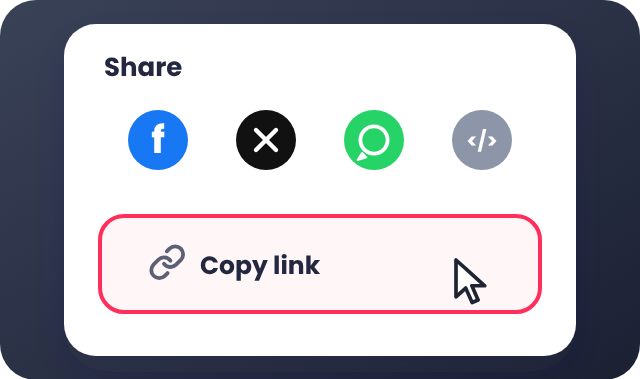
Open the video on YouTube, tap Share, and select Copy link. On a computer, you can also copy the full URL directly from your browser's address bar.
Paste the Link and Click Download
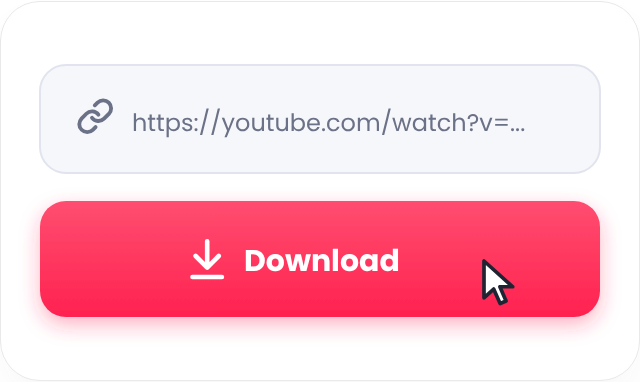
Paste the link into the box at the top of this page and press Download. DownMP4 processes the video and displays all available qualities in a few seconds.
Choose a Quality and Save
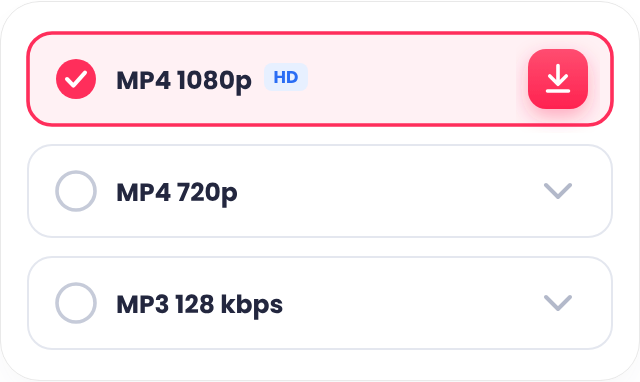
Pick an MP4 resolution such as 1080p or 720p—or choose MP3 for audio only—and tap to save. The file goes straight to your default Downloads folder. Need help finding it? Your device guide below explains where to look.
Choose Your Device
The steps above work everywhere, but saving and finding your file varies by device. Select yours for exact instructions.
Windows
For PCs and laptops. Works in Chrome, Edge, and Firefox, saving files directly to your Downloads folder.
Windows Guide →Mac
For macOS. Works in Safari and Chrome, with downloaded files appearing in Finder's Downloads folder.
Mac Guide →Android
For phones and tablets. No app needed—download in your browser and open files from the Files app.
Android Guide →iPhone & iPad
Use Safari on iOS or iPadOS, then access your saved videos anytime in the Files app.
iPhone Guide →Which Quality Should You Choose?
Higher quality looks sharper but creates a larger file. Use this quick guide to decide:
| Quality | Best For |
|---|---|
| 4320p - 8K | 8K displays and maximum-quality archiving. Files are very large, so make sure your device and storage can handle them. |
| 2160p - 4K | 4K TVs and video editing, with enough detail to zoom or crop without losing sharpness. |
| 1440p - 2K QHD | Large QHD monitors and gaming screens when you want sharper detail than Full HD without a huge 4K file. |
| 1080p - Full HD | Laptops, monitors, and TVs, offering the ideal balance of sharp Full HD detail and file size. |
| 720p - HD | Phones, tablets, and everyday viewing, delivering clear HD quality in a manageable file size. |
| 480p | Phones and quick sharing, with a smaller file that is easy to send through chat apps. |
| 360p | Slow connections and saving storage space, with smooth playback on small screens. |
| 240p | Slow connections and small screens when you need a lightweight file. |
| 144p | Very slow connections and minimal data use. This is the lowest video quality with the smallest file size. |
| MP3 128kbps | Listening on phones and saving space, with clear audio for music, podcasts, and spoken content on any headphones or speaker. |
| M4A 128kbps | Audio playback on iPhone, iPad, and Apple devices, offering rich sound quality in a compact file. |
| WebM 128kbps | Modern web browsers and high-efficiency audio playback with a compact file size. |
Higher options such as 1080p, 2K, and 4K appear only when the original video was uploaded in that quality.
Common Problems
Most issues have a quick fix. Check these first:
The Link Isn't Working
Make sure you copied the full URL and that the video is public. Refresh the page and try again.
The Link Isn't Working
Make sure you copied the full URL and that the video is public. Refresh the page and try again.
No Sound in the Video
Choose an MP4 option that includes audio. Qualities of 720p and 1080p include full audio tracks.
No Sound in the Video
Choose an MP4 option that includes audio. Qualities of 720p and 1080p include full audio tracks.
1080p or 4K Is Missing
The video may not have been uploaded in that resolution. Choose the highest quality listed.
1080p or 4K Is Missing
The video may not have been uploaded in that resolution. Choose the highest quality listed.
The Download Fails or Stops
Check your internet connection and available storage, then try again or switch to another browser.
The Download Fails or Stops
Check your internet connection and available storage, then try again or switch to another browser.
The File Won't Play
Open it with a modern media player such as VLC. If it still fails, download the file again.
The File Won't Play
Open it with a modern media player such as VLC. If it still fails, download the file again.
What You Can and Cannot Download
- Public YouTube videos and Shorts
- Standard MP4 videos with audio, or audio-only MP3/M4A files
- Any resolution the video offers, up to 4K and 8K when available
- Private videos or videos that require signing in
- Age-restricted or members-only videos
- Videos with access restrictions set by YouTube or the copyright owner
Download Responsibly
Only download videos you own, videos you have permission to use, or content that is free to share. Respect the creator's copyright and YouTube's Terms of Service. DownMP4 is an independent service and is not affiliated with YouTube.
Frequently Asked Questions
Is DownMP4 free to use?
Yes. Downloading is completely free, with no sign-up and no app to install. Just paste a link, choose a quality, and save your file.
Which video quality should I choose?
For most phones and everyday viewing, 720p offers a great balance of sharpness and file size. Choose 1080p for larger screens and 480p to save storage space. The highest quality available depends on how the original video was uploaded.
Is it legal to download YouTube videos?
It depends on the video and where you live. Downloading is generally fine for your own videos, content you have permission to use, and content that is free to share. Downloading copyrighted videos without permission may violate copyright law or YouTube's Terms of Service. You are responsible for how you use downloaded files.
Where are my downloaded videos saved?
Files go to your device's default download location—usually the Downloads folder on Windows and Mac, and the Downloads folder or Files app on Android and iPhone. Your device guide above shows the exact path.
Why is 1080p or 4K not showing?
The video may not have been uploaded in that resolution, or the creator may limit higher options. DownMP4 lists all qualities available directly from the source video, so choose the highest one shown.
Can I download only the audio (MP3)?
Yes! After pasting your YouTube link, select MP3 (128 kbps), M4A, or WebM from the quality list to save audio only. Check the quality table above to compare audio and video formats.