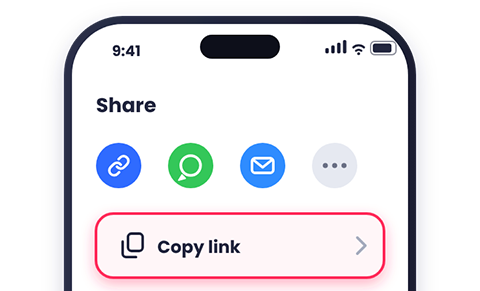
Copy the video link
In the YouTube app, tap Share and select Copy link. If you're watching in a web browser, copy the URL directly from the address bar.
Download YouTube videos on iPhone without an app. Copy the link, paste it into DownMP4 in Safari, save the MP4, and find it in Files or Photos.
In the YouTube app, tap Share and select Copy link. If you're watching in a web browser, copy the URL directly from the address bar.
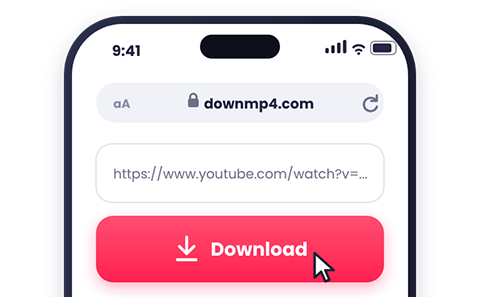
Tap the input box on this page, tap again (or touch and hold), select Paste, and then tap Download.
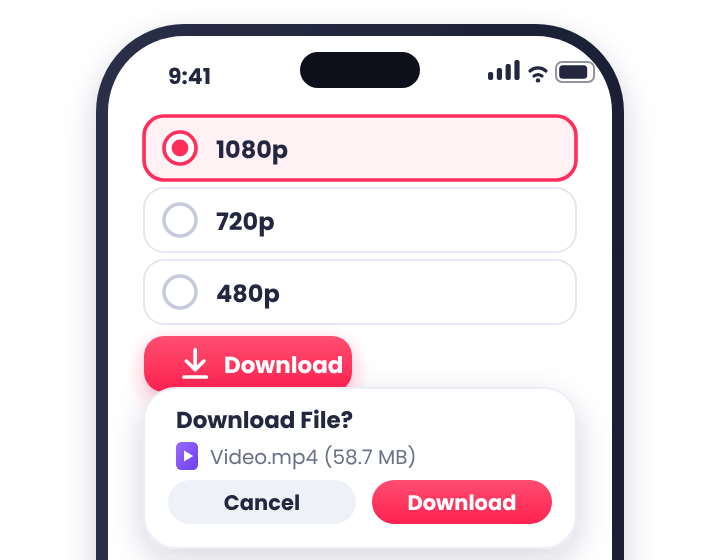
For iPhone, 1080p or 720p is the most reliable choice. Tap your preferred quality, then tap Download when Safari asks for confirmation. Keep Safari open until the download finishes.
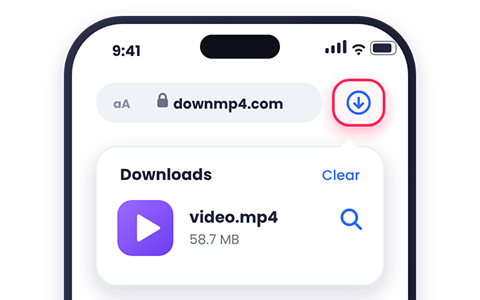
Tap the Downloads icon (the downward arrow) in Safari's address bar, then tap Downloads and select the video to play it.
Safari saves downloads to the Files app rather than Photos.
Open Files > Browse > Downloads. Depending on your settings, this folder is stored under On My iPhone or iCloud Drive. To change the default folder, go to Settings > Safari > Downloads.
Choose 1080p for the ideal balance of crisp image quality, manageable file size, and full iOS compatibility, or pick 720p to save storage. 4K files are much larger and may not save to Photos or play smoothly on all models. Want to compare every format? Check out our quality guide.
Select M4A (Apple's native audio format) or MP3 from the quality menu. Your audio file saves directly to the Files app where you can play it anytime. Note that downloaded audio files aren't automatically added to the Apple Music library.
Touch and hold the quality button, then select Download Linked File from the menu.
You might be using an in-app browser (such as Instagram, Facebook, Telegram, or Gmail). Open this page directly in Safari instead. Also check if a content blocker is active and disable it for this site.
Open the Files app and check the Downloads folder under both On My iPhone and iCloud Drive. You can also use the search bar in Files to look up the video title.
The Photos app may not support that video codec, or the file is still stored in iCloud (indicated by a cloud icon next to it). Tap the file to finish downloading it to your device first. If the option still doesn't show up, download the video again in 1080p or play it directly from the Files app.
The file may use a video codec your iPhone doesn't support natively, which is most common with 4K and 8K streams. Download the video again in 1080p or 720p for guaranteed playback.
Keep Safari open and your screen awake—locking your iPhone or switching apps can interrupt large downloads. Low Power Mode can also pause background transfers. Check your available storage, switch between Wi-Fi and cellular data, or try a lower resolution.
If iOS shows a permission prompt, tap Allow Paste. If the Paste option doesn't appear, copy the link again from the YouTube app, return to Safari, and tap the input field once more.
Looking for more general fixes (such as missing 1080p options, failed downloads, or unplayable files)? Visit Common Problems.
Yes. DownMP4 runs directly in Safari, so you don't need to install any third-party app or shortcut.
Yes. The exact same steps work in Safari on iPadOS.
We recommend Safari. Other iOS browsers handle file downloads differently, so if a download fails in Chrome, switch to Safari.
Safari saves all downloads to the Files app first. Open Files, select the video, and tap Share > Save Video to add it to your Photos library.
Safari's built-in download manager requires iOS 13 or later. If you're using an older version, update iOS first.
Yes. Once saved to your iPhone, the video plays anytime without an internet connection.
Only download videos you own or have permission to save. See Download Responsibly.